

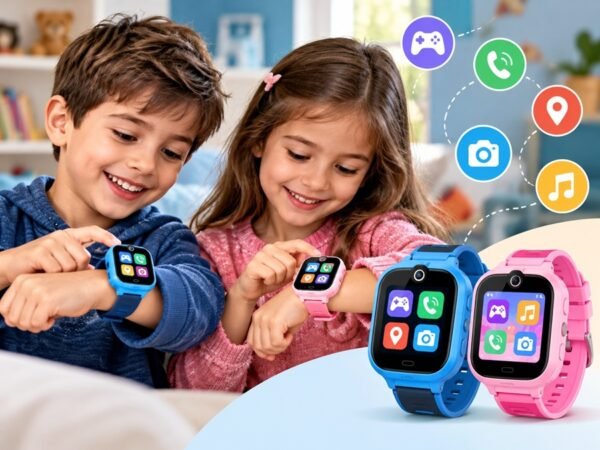
The box arrives, your child is thrilled, and then you notice the line in the manual: “Insert Nano SIM to activate calling.” Suddenly you are wondering which network to use, whether a ₹99 plan is enough, and why the watch shows 4G but will not connect.
A smart watch with SIM slot is essentially a small phone on the wrist, so it needs the same basics: a working SIM, the right network settings and a suitable plan. Here is a simple, India-specific guide.
Why the SIM slot matters
Watches without a SIM rely on your phone’s Bluetooth and stop being useful the moment your child walks away from you. A SIM-based watch connects on its own, which is what makes independent calling, video calls and live location possible when your child is at school, in the park or on the bus.
Step 1: Choose the right SIM
- Size: Most kids’ watches use a Nano SIM. Check before you visit the store.
- Network: Pick the operator with the strongest 4G signal at your child’s school and home, not just at your office.
- VoLTE: Calling on modern kids’ watches works over VoLTE. Jio, Airtel, Vi and BSNL all offer it in most circles, but confirm it is enabled on the specific SIM.
- Ownership: Register the SIM in a parent’s name. It keeps KYC simple and lets you manage recharges.
- Caller ID: Features that block unknown callers may require caller-ID to be active on the SIM.
Step 2: How much data does a kids’ watch use?
Less than most parents expect. Location updates, voice messages and app sync are tiny. Video calls are the main data consumer. For typical use, around 1 GB a month is a sensible starting point, which most basic monthly plans cover easily. If your family video calls daily, choose a plan with a little more headroom.
A practical approach is to start with an entry-level monthly plan, check usage in the operator’s app after four weeks, and adjust.
Step 3: Prepare the SIM before inserting it
Many setup headaches come from a SIM PIN request. Before putting the SIM in the watch:
- Insert it into a smartphone first and make a test call.
- Disable the SIM PIN lock in that phone’s settings.
- Confirm that mobile data works.
Then power off the watch, insert the SIM carefully, close the cover firmly and switch it on.
Step 4: Pair with the parent app
Install the watch maker’s app on your phone, scan the code shown on the watch, and add family contacts. This is also where you set up safe zones, Class Mode and stranger-call blocking. Do it once properly and you rarely need to touch it again.
Troubleshooting: “It shows 4G but nothing works”
This is the most common complaint, and it is usually fixable in minutes.
- Check the balance and data pack. An expired plan can still display a 4G icon.
- Connect the watch to home Wi-Fi so it can download firmware updates.
- Enter APN settings manually. Ask your operator for the APN and enter it in the parent app’s watch settings.
- Restart the watch after any change.
Step 5: Look after the SIM cover
The SIM cover is part of the watch’s water seal. If it is loose or damaged, water can get in. Make sure it clicks shut after every SIM change, and avoid prying it open with sharp objects. If the tray or cover is ever lost or broken, buy the official replacement for your model rather than a generic one.
What to look for when buying
If you have not bought the watch yet, a few points make SIM life easier:
- Support for 4G VoLTE on the bands Indian operators use.
- A free parent app with no subscription fee.
- Clear guidance on data usage and APN setup from the brand.
- A local service and warranty network.
Specialist children’s brands usually publish this information clearly. imoo, for example, lists supported Indian carriers (Airtel, Jio, Vodafone Idea and BSNL), a recommended data allowance and APN steps on its product pages. The imoo Z1 is a straightforward 4G smart watch with SIM slot that takes a standard Nano SIM and supports VoLTE voice and video calling.
The bottom line
Choose the strongest local network, disable the SIM PIN, start with a basic plan and keep the SIM cover sealed. Get those four things right and your child’s watch will behave like what it is: a simple, reliable first phone on the wrist.
