

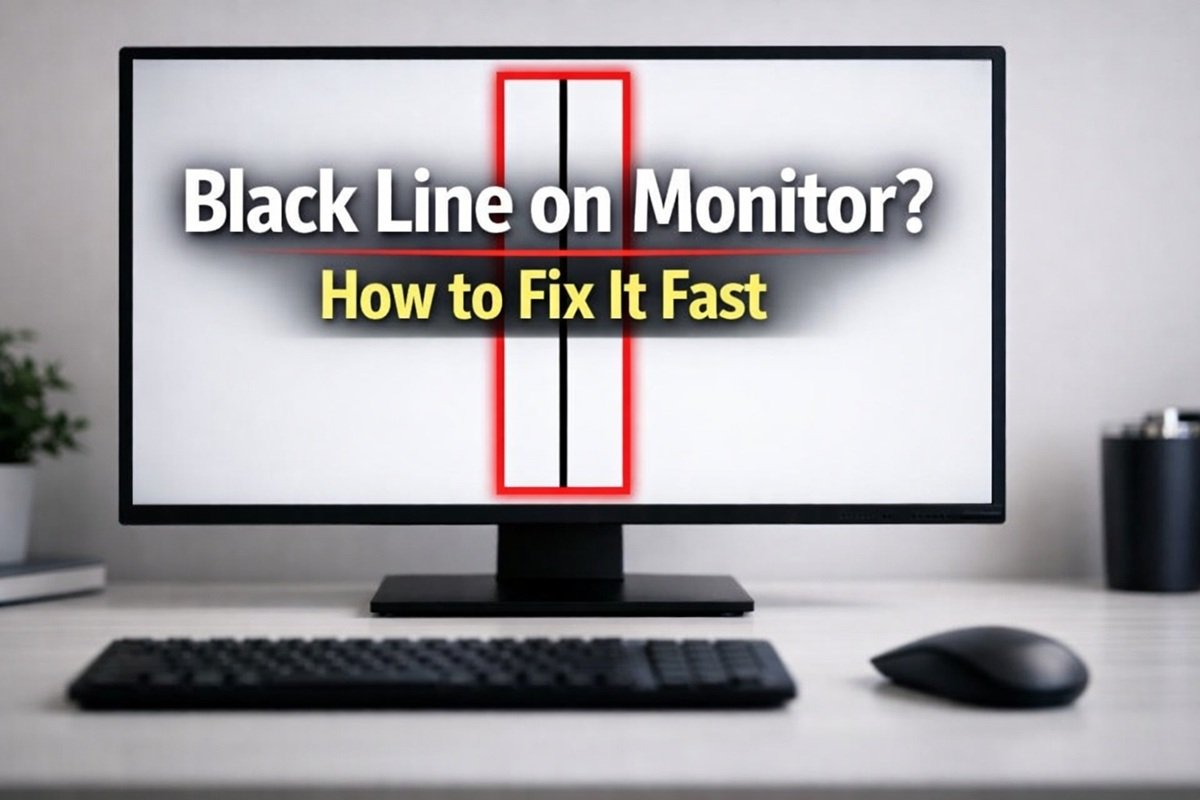
Seeing a black line on monitor screens can instantly ruin your focus and trigger frustration, especially if it appears without warning. If you’re staring at a horizontal or vertical black line on your computer screen, you’re not alone—many users encounter this disruption during gaming, after a system update, or simply out of the blue. The good news is that every black line on monitor displays tells a story about what’s happening inside your device.
Understanding these clues is the first step toward getting your display back to perfect.
This guide breaks down the root causes of black lines on monitors, walks you through a systematic troubleshooting process, and provides hands-on repair techniques used by professionals. By the end, you’ll know whether your monitor can be saved or if it’s time to upgrade.
With over a decade of hands-on hardware troubleshooting experience, I’ve seen nearly every type of display failure imaginable.
Run This 60-Second Diagnostic First
Before disassembling anything, isolate the problem with these quick tests:
Cable wiggle test: Gently move the HDMI or DisplayPort cable at both ends. If the line flickers or disappears, you have a connection issue.
OSD menu test: Open your monitor’s built-in settings menu. If the black line appears over the menu interface, the problem is internal hardware (the panel itself). If the menu covers the line, it’s likely your graphics card or drivers.
Cross-device test: Connect your computer to a different display. If the line follows your PC to the new screen, your GPU is the culprit. If the new screen is clean, your original monitor has failed.
BIOS boot check: Restart your computer and watch the startup screen. If the line appears during the BIOS splash (before Windows loads), it’s a hardware failure.
What Actually Causes Black Lines on Monitors?
Most black lines stem from internal ribbon cable failures, faulty T-Con boards, or physical damage to the LCD panel. Occasionally, outdated graphics drivers, loose external cables, or software glitches create similar visual artifacts.
Here’s how to identify your specific issue:
| Symptom | Likely Cause | Severity |
| Solid vertical black line | Source driver IC failure or loose internal ribbon cable | High (hardware) |
| Solid horizontal black line | Gate driver or T-Con board malfunction | High (hardware) |
| Flickering or colored lines | Loose HDMI/DP cable or corrupted graphics drivers | Low (software/connection) |
| Single tiny black dot | Dead pixel from transistor failure | Low (cosmetic) |
| Irregular black smudge | Physical crack or liquid damage | Critical (permanent) |
| Moving black dot | Bug trapped inside screen layers | Medium (requires caution) |
| Many “black line on computer screen” issues come from digital miscommunication rather than physical breakage. Start here before assuming hardware failure. |
Power Cycle Your Monitor Properly
Monitors store static charge in internal capacitors, which can cause display glitches.
Turn off both your computer and monitor completely. Unplug the monitor’s power cable from the wall outlet. Press and hold the monitor’s power button for 30 seconds to drain residual electricity. Reconnect everything and power on.
Update or Reinstall Graphics Drivers
Corrupted GPU drivers are the leading cause of signal artifacts and phantom lines.
Open Device Manager, expand Display Adapters, right-click your graphics card, and select Update Driver. For a more thorough fix, download DDU (Display Driver Uninstaller) to completely remove old drivers, then install the latest version directly from NVIDIA, AMD, or Intel.
Verify Your Display Settings
An incompatible refresh rate can force your monitor to display lines because it can’t sync properly with your GPU’s output.
Right-click your desktop and select Display Settings. Scroll to Advanced Display Settings and check the Refresh Rate. Make sure it matches your monitor’s native specification (typically 60Hz, 144Hz, or higher). If you’ve overclocked your monitor, revert to default settings immediately.
Swap Your Cable
Even high-quality HDMI and DisplayPort cables can develop internal breaks. Try a different cable entirely—preferably one you know works with another device.
Hardware Fixes for Internal Monitor Issues
If the OSD menu test confirmed the line appears on top of the menu interface, you’re dealing with internal hardware failure.
Reseat the Internal Ribbon Cables
Warning: This process voids most warranties. Proceed only if you’re comfortable opening electronics.
Inside your monitor, flat flex cables connect the T-Con (Timing Controller) board to the display panel. Heat cycles over time can loosen these connections.
Place your monitor face-down on a soft towel. Unscrew the back casing and carefully pry it open with a plastic spudger. Locate the T-Con board (usually along the top or bottom edge). Unlock the ribbon cable connectors by lifting the small plastic tabs. Gently pull out each cable, clean the gold contacts with 99% isopropyl alcohol, and firmly reseat them. Reassemble and test.
Inspect and Replace the T-Con Board
Horizontal black lines often point to T-Con board failure. This component controls how pixels scan across your screen. When specific chips overheat, entire rows of pixels can go dark.
Locate the part number printed on your T-Con board (you’ll need to open the monitor as described above). Replacement boards are available on eBay or AliExpress for $20-$50 and typically require no soldering—just plug-and-play connector swaps.
Check for Tab Bond Failure
This is the most common cause of vertical lines. The flexible cables bonding the glass panel to the circuit board can separate slightly over time.
To diagnose: Gently squeeze the monitor’s bezel directly above where the vertical line appears. If the line disappears or changes color while you’re applying pressure, you have tab bond failure. This can sometimes be fixed with the pressure method described below.
Special Case: Removing a Bug Trapped Inside Your Monitor
Thrips (thunderbugs) or small ants can crawl through ventilation holes and get trapped between the backlight and LCD layers. They appear as moving black dots or lines.
Critical warning: Do not press on the screen to squish the bug. If you do, its bodily fluids will permanently stain the internal screen layers, creating an unfixable dark splotch.
Safe removal method: Turn off the monitor immediately to eliminate the heat and light attracting the bug. Shine a bright flashlight through the side or back vents (away from the screen) to lure it out. Leave the monitor off for 24 hours. Most bugs will find their way out or die and fall to the bottom bezel where they’re not visible.
If the bug is dead and stuck in a visible area, you can carefully use a suction cup to pull the outer plastic layer slightly away from the LCD, allowing the dried bug to fall. This carries risk of damaging the screen, so proceed with extreme caution.
The Pressure Method for Loose Tab Bonds
If you’ve confirmed your issue is a loose tab bond (the line flickers when you touch the bezel), you can attempt a DIY shim fix used by repair professionals.
Safety warning: Too much pressure can crack the glass matrix and destroy your monitor instantly.
Identify the exact spot on the bezel where pressure makes the line disappear. Cut a small piece of dense material like a rubber eraser slice or thermal pad. Open the monitor casing. Place the shim directly on the tab bond ribbon cable at the failure point. Reassemble the case so it applies constant, gentle pressure on that shim when screwed together.
This mechanical pressure maintains electrical contact and can provide a semi-permanent fix.
Should You Repair or Replace Your Monitor?
Average Monitor Repair Costs (2026)
- T-Con Board: $20–$50
- Professional Diagnosis: $50–$75
- Panel Replacement: $150–$400
- New 24” IPS Monitor: $120–$180
Here’s the honest breakdown on when to attempt repair versus buying new:
Attempt repair if:
- Your monitor cost $500 or more
- The issue is a replaceable T-Con board (inexpensive part)
- The line is intermittent or temperature-dependent
- You’re comfortable with electronics disassembly
Replace the monitor if: - The screen has physical cracks with a spiderweb pattern
- You have multiple solid black bands wider than one inch
- Replacement panel cost exceeds 60% of a new monitor’s price
- You accidentally squashed a bug inside (the stain is permanent)
Monitor prices have dropped significantly in recent years. A new 27-inch 144Hz IPS panel often costs less than professional repair services. Sometimes the smartest move is cutting your losses and upgrading.
Take Control of Your Display Issues
Black lines on monitors range from simple cable problems to terminal hardware failure. By methodically working through software fixes, connection checks, and finally hardware diagnostics, you can pinpoint the exact cause and make an informed decision about repair versus replacement.
Start with the 60-second diagnostic checklist, exhaust all software solutions, and only proceed to hardware fixes if you’re confident in your technical skills. When in doubt, professional repair shops can assess your monitor for $50-$75 and provide a quote before you commit.
Your screen doesn’t have to stay broken—now you know exactly what to do about it.
Frequently Asked Questions
1. Why do I see a black line on my monitor but not on my screenshots?
If the black line on monitor appears physically but doesn’t show up in screenshots, it usually indicates a hardware problem with the monitor itself—such as a faulty ribbon cable or defective panel—rather than a GPU or software issue.
2. Can a software update cause a black line on my computer screen?
Yes, sometimes a graphics driver update or incompatibility may create display artifacts like a black line on your computer screen. Updating or rolling back your drivers can help resolve these software-related issues.
3. What is the fastest fix for a single vertical black line on a monitor?
Start by checking your cables and connections. If that fails, try the OSD menu test. If the black line remains visible over the menu, it’s likely hardware-related, and reseating internal cables may help.
4. Is it worth repairing a horizontal black line on my screen?
Repairing a horizontal black line depends on the cause. Replacing a T-Con board is often affordable, but physical screen damage or tab bond issues may make replacement a better option, especially for older or budget monitors.
5. Can I fix a monitor black line myself, or should I seek professional help?
You can fix a monitor black line yourself if the issue is cable- or software-related. If internal disassembly, tab bond, or board replacement is required, only attempt DIY repairs if you’re confident with electronics. Otherwise, seek professional assistance to avoid further damage.
Monitor technology prices have dropped significantly. Sometimes, the stress of a complex repair isn’t worth the cost of a brand-new 144Hz IPS panel. Troubleshoot smart, stay safe, and good luck!
